Tutorial
How to use Zetlis, start to finish
Upload your product photos, let Zetlis write the listing, review what it created, and publish it to eBay. This page walks through the whole thing in the order you will actually do it.
Seller Profiles
OptionalZetlis works without one. A Seller Profile simply gives Zetlis context about your store — what you sell, how you want your listings written, keywords to always include and words never to use. That context shapes the titles and descriptions Zetlis creates.
Create as many as you need — one per store, product category or selling style — and switch between them on the Dashboard. Your eBay marketplace and shipping origin live here too, and eBay needs the shipping origin before you can publish.
One Seller Profile: store name, tone, keywords, words to avoid, marketplace and shipping origin.
Photo Collector
OptionalPhoto Collector is a free Chrome extension from Zetlis. It finds the product images a web page has loaded, lets you choose the ones you want, and saves them to your computer sorted into a folder per product — instead of saving each photo by hand.
It works on its own and needs no Zetlis subscription. It does not use analysis credits.
How to use it
- Open the product page in Chrome.
- Click the Zetlis Photo Collector icon to open the panel.
- Let it scan the page.
- Review Main product images, and Other images on this page below them.
- Press Rescan after hovering, zooming or scrolling, so images the page loads late are picked up.
- Click a thumbnail to preview it full size, then tick the photos you want.
- Choose Original format or JPG.
- Name the product and add the selected photos to it.
- Repeat for as many products as you like.
- Download one product, or all of them at once.
Using the folders with Bulk
Each product downloads into its own folder. That is the same shape Bulk expects: one main folder containing up to 50 product subfolders.
Upload that main folder in step 1 below, and Zetlis creates the listings for every product in it. You review and publish them on your own schedule.
Only download and reuse images that you own or have permission or other legal rights to use.
See Photo CollectorAdd your photos
For a single product, upload all of its photos together. Zetlis reads them to work out what the item is.
For a pile of products, put each product's photos in its own subfolder inside one main folder and upload that folder instead — up to 50 products in one batch.
The photos you upload
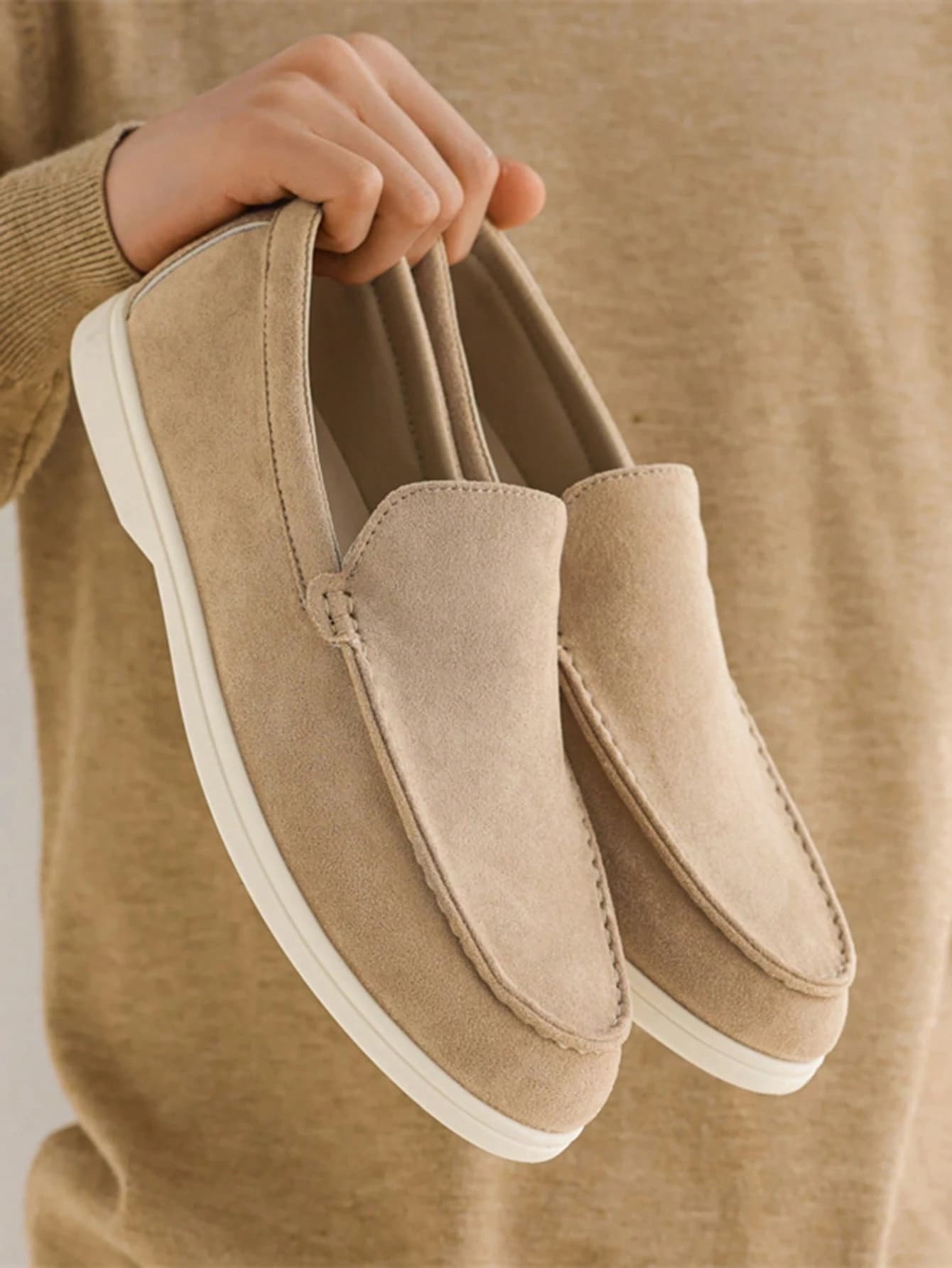
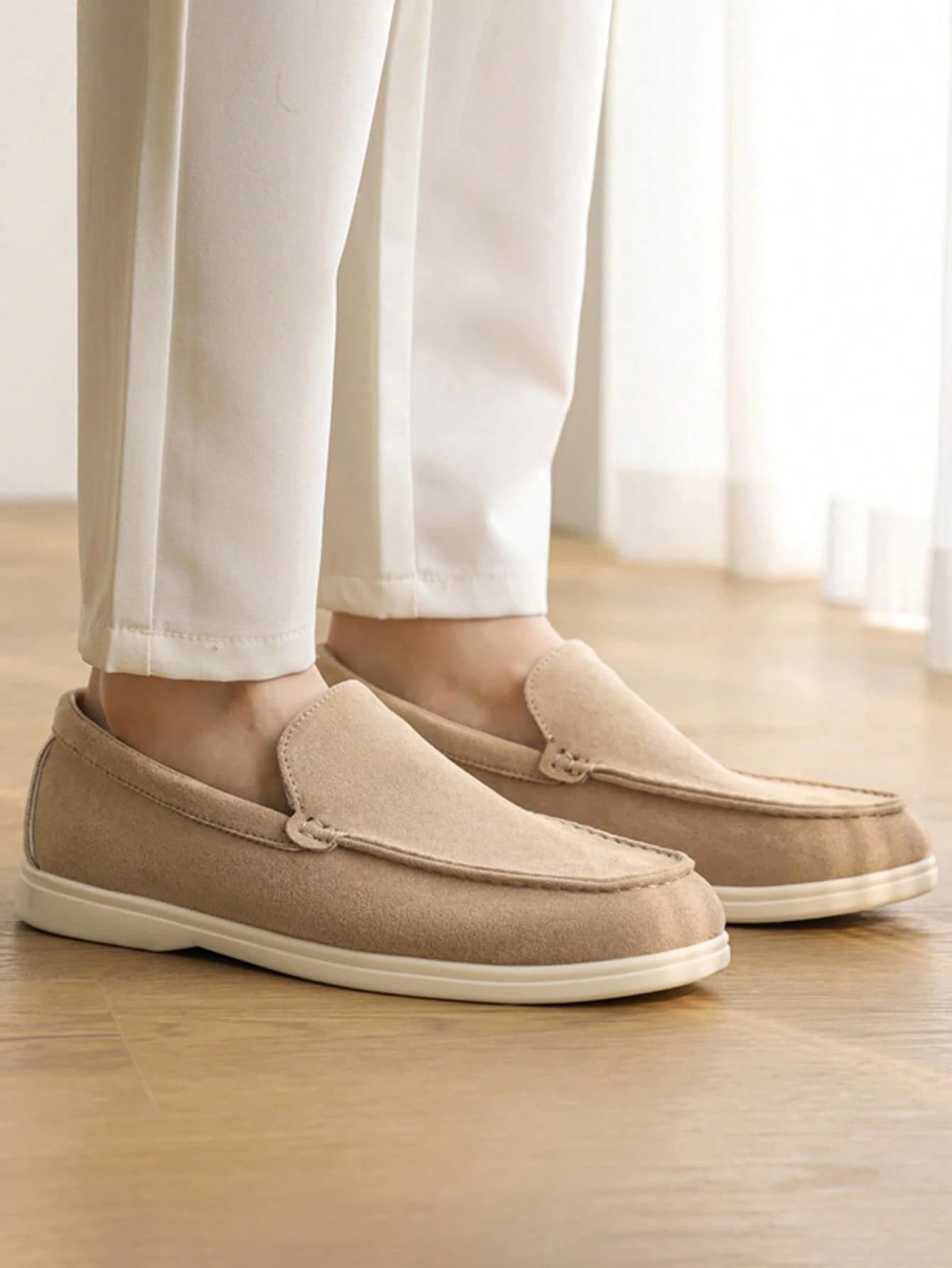
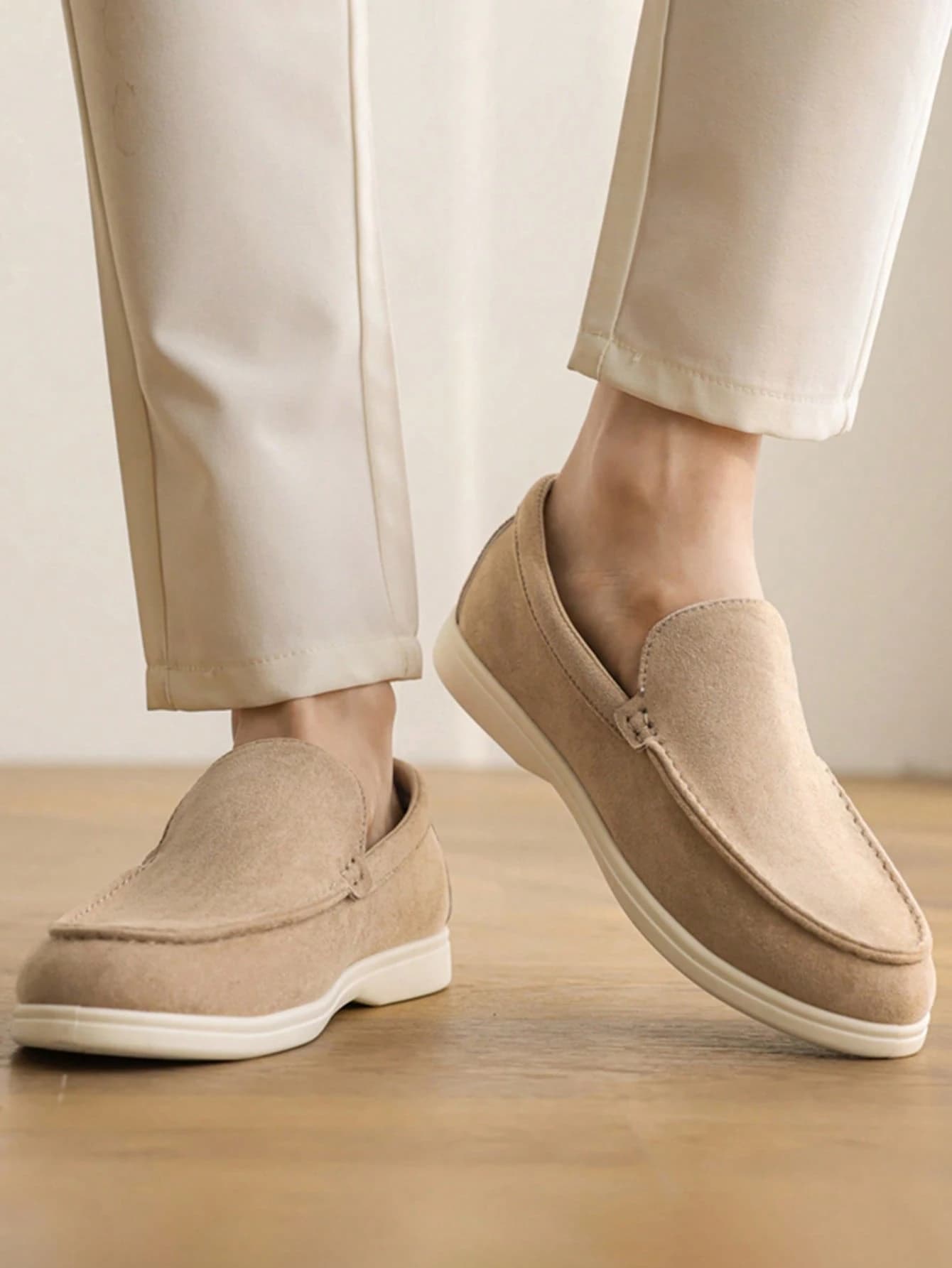
Both paths start here: Upload Folder for a batch, Upload Images for one product.
Analyze
Select the item's condition and click Analyze. Zetlis reads the photos and creates the listing.
This is the step that consumes one analysis credit.
Condition, then Analyze. Zetlis tells you what it will cost before it runs.
Variations, when you need them
Sizes & Colors is the first panel on the analyzed listing. If you sell the same product in several sizes or colours, choose the product category, pick the combinations you actually carry, apply one price and quantity across all of them, and change only the exceptions.
You also decide here whether those combinations become one eBay listing with variations, or a separate listing for each. Selling a single item? Skip straight past it.
Unchecked: Zetlis creates a separate listing for each selected size.
Checked: one eBay listing with variations — quantity and price set per combination.
Titles and keywords
Zetlis writes three complete titles. If a Seller Profile is active, its context helps shape those options too — profiles influence your titles, not only your descriptions.
Pick the one that fits or edit it yourself, and click the suggested keywords underneath to add one to the title or take it out. The 80-character counter updates as you type.
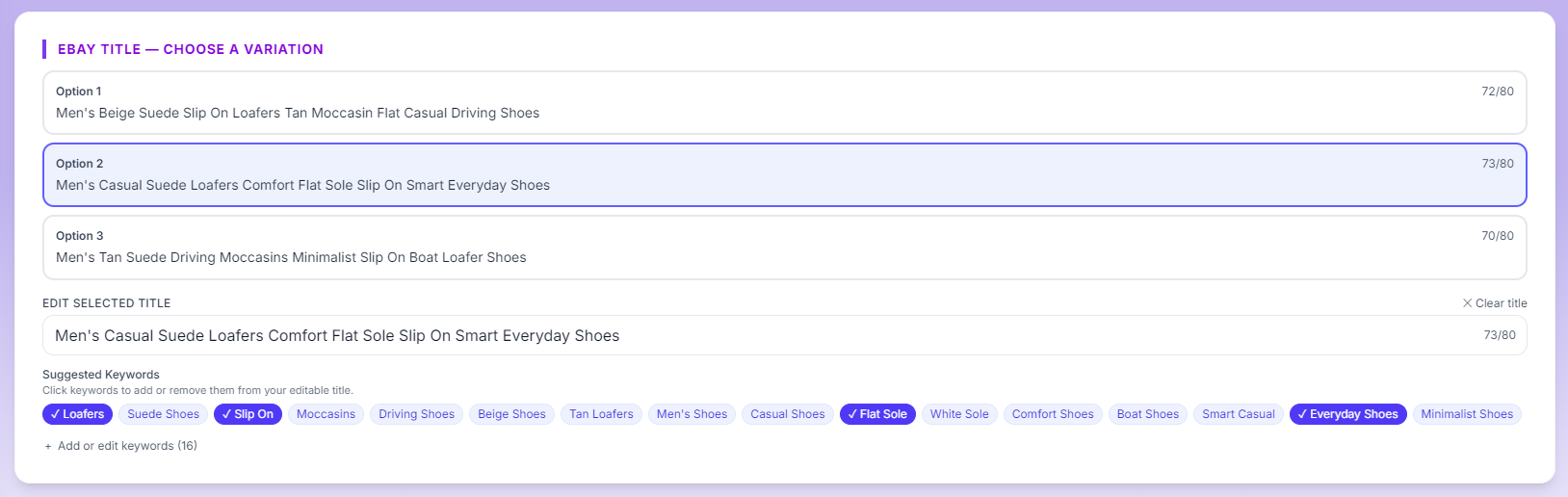
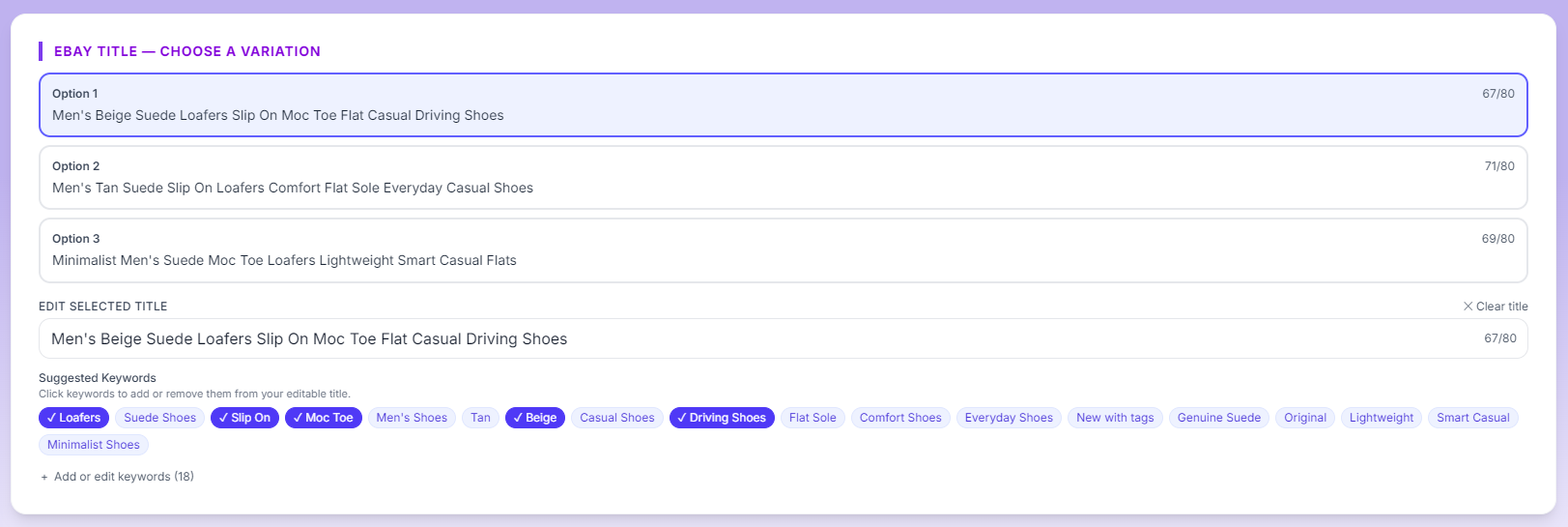
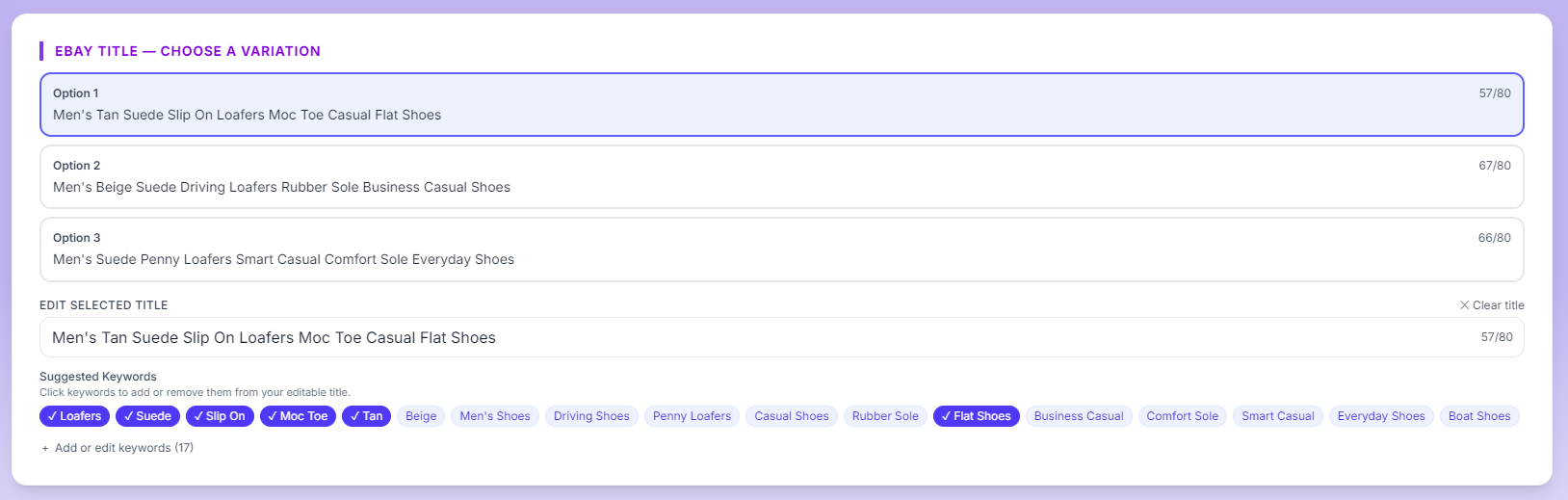
The same loafers analyzed under three Seller Profiles — General, Casual & Friendly, and Technical & Professional — each producing a different title and keyword mix.
Description
From the same photos, Zetlis writes a complete description. If a Seller Profile is active, its context is what decides how that description reads.
It arrives finished, and it stays editable — change a line, a section, or all of it.
General
One pair of loafers, three Seller Profiles, three descriptions. Switch between them to see what a profile changes.
Complete the listing
After Zetlis creates the listing, you review the remaining eBay fields: category, price, SKU, package weight and dimensions, condition, and item specifics.
These aren't a fixed Zetlis form — the item specifics come from eBay and change depending on the category. Zetlis fills in what it can determine from your photos; you review and edit every field, and complete anything it couldn't, like price, package measurements, or other required details.
eBay decides which fields this category needs. Zetlis fills in what it can; you complete the rest.
Publish to eBay
Review the listing, then click Publish on eBay. It goes straight to your connected eBay account — no copying, no pasting, no browser extension.
Nothing is published automatically. Nothing reaches eBay until you click that button.
The end of that same listing. Save changes keeps your edits; Publish on eBay sends it to your account.
History
Every analyzed listing is saved to History automatically. What you have not published yet sits in Drafts; what you have published sits in Published.
Reopen any of them later to edit, publish, or reuse. Reusing a listing you already analyzed does not spend another analysis credit.
History. The tabs separate drafts from what is live on eBay, and from what has sold.
Video tutorials
Short walkthroughs of the parts people ask about most. They play right here.
Ready to list your first product?
Go to the Dashboard →